We’ve created an interactive, step-by-step guide to walk you through TrueChecks User Roles. You can click Get Started to experience exactly how it works in real time.
📕 Prefer to read instead? Keep scrolling for the full tutorial with screenshots and explanations.
Understanding TrueChecks User Roles
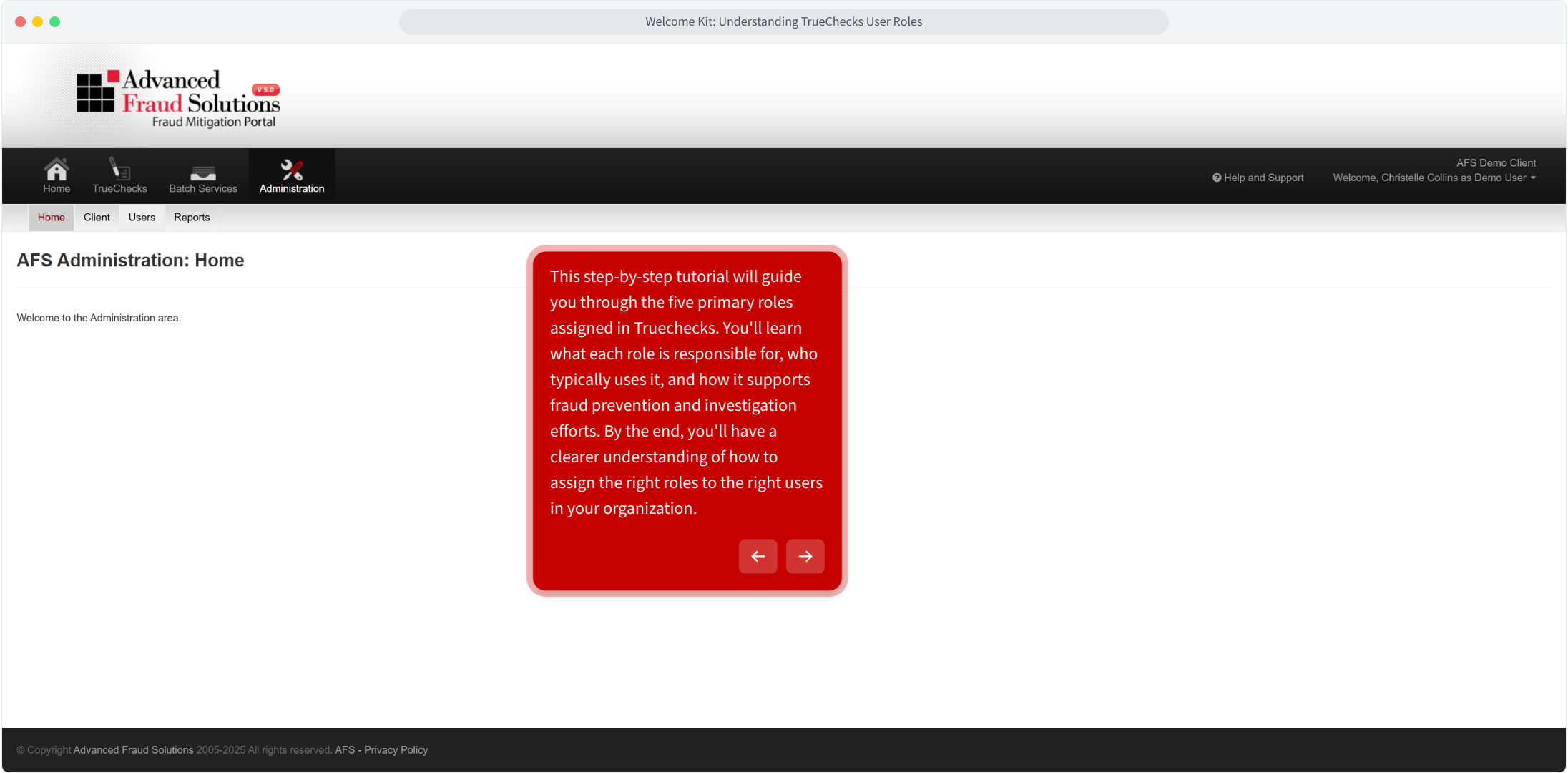
This step-by-step tutorial will guide you through the five primary roles assigned in TrueChecks. You'll learn what each role is responsible for, who typically uses it, and how it supports fraud prevention and investigation efforts. By the end, you'll have a clearer understanding of how to assign the right roles to the right users in your organization.
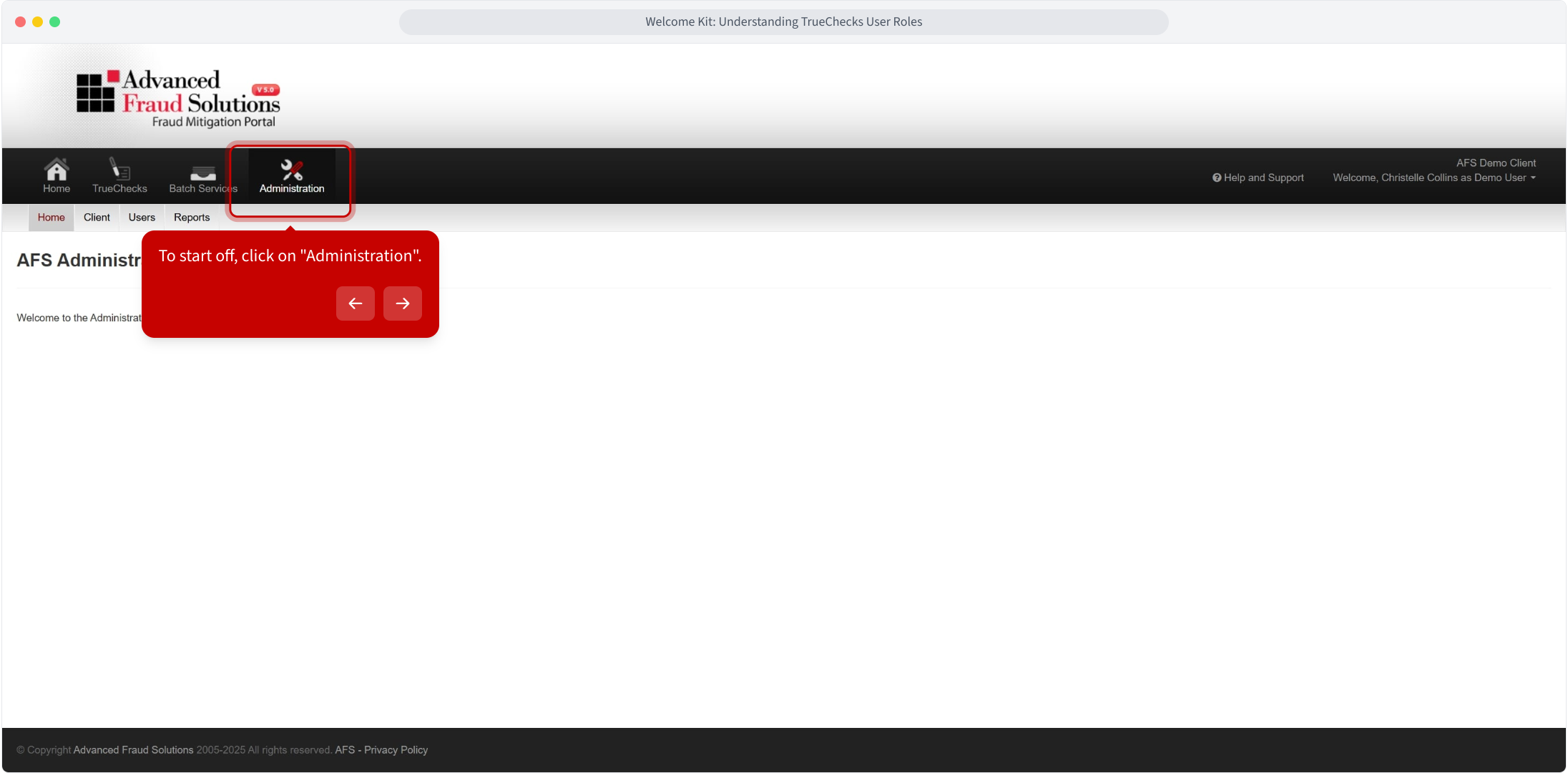
To start off, click on "Administration".
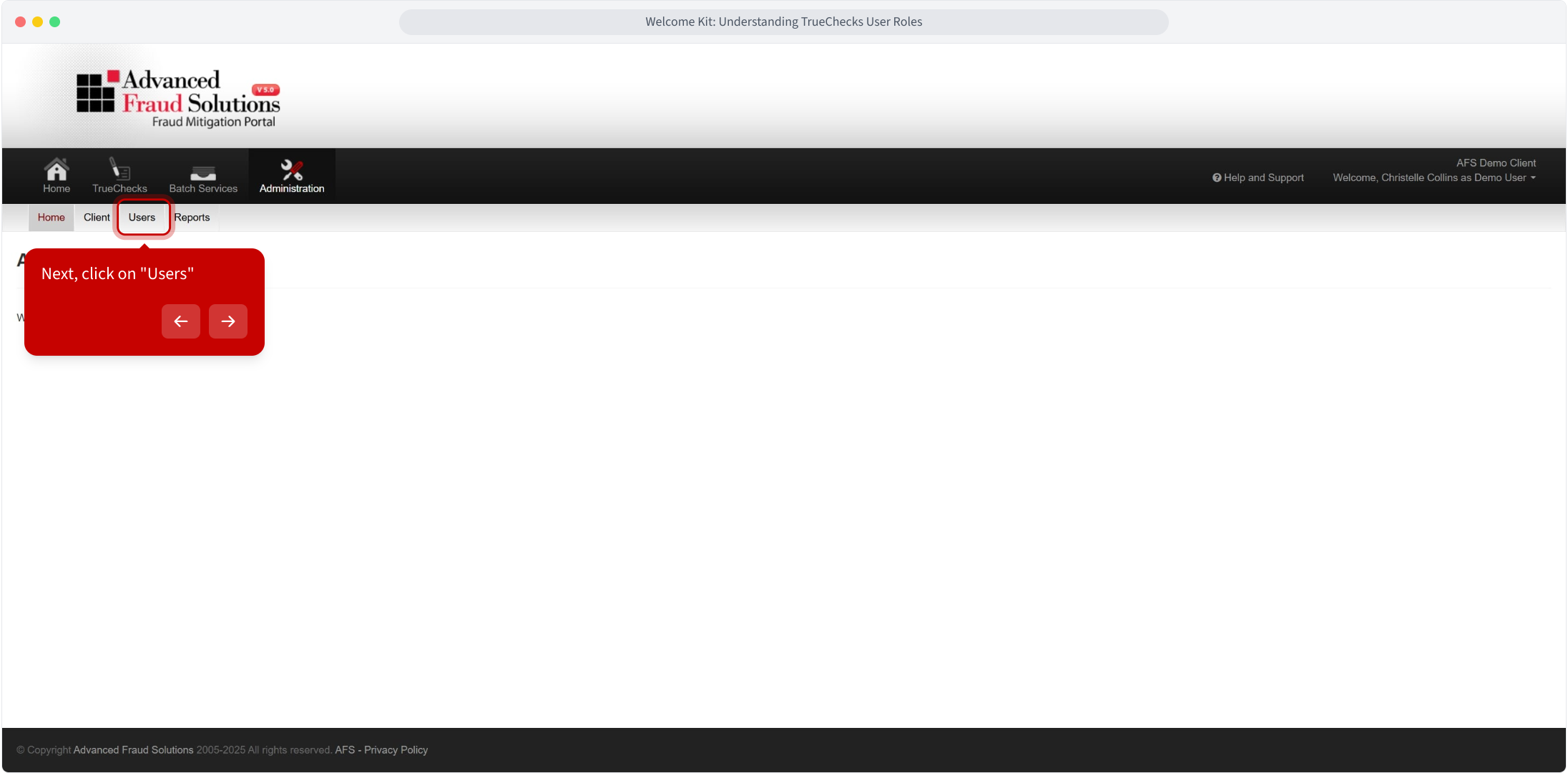
Next, click on "Users"
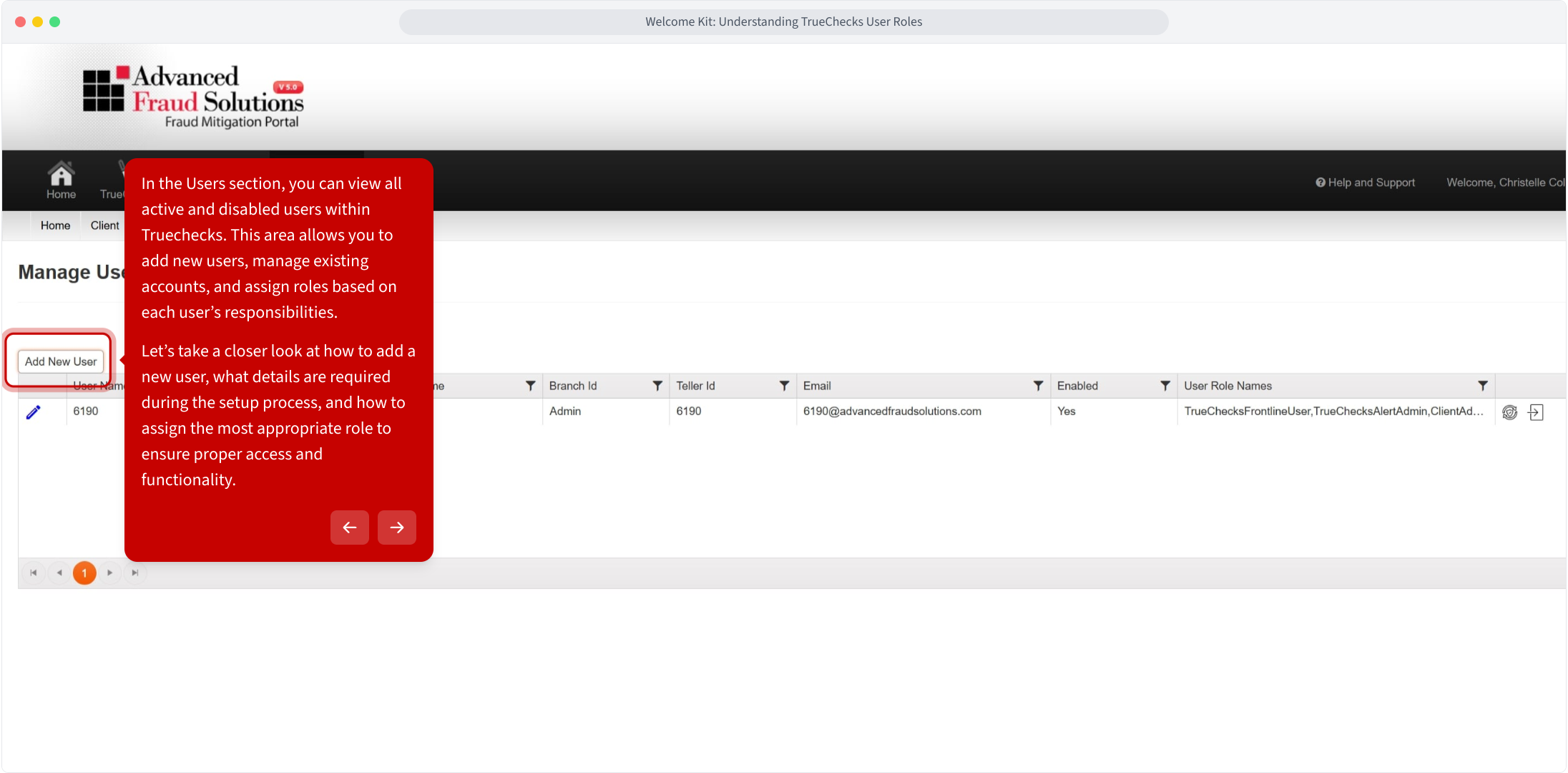
In the Users section, you can view all active and disabled users within TrueChecks. This area allows you to add new users, manage existing accounts, and assign roles based on each user’s responsibilities.
Let’s take a closer look at how to add a new user, what details are required during the setup process, and how to assign the most appropriate role to ensure proper access and functionality.
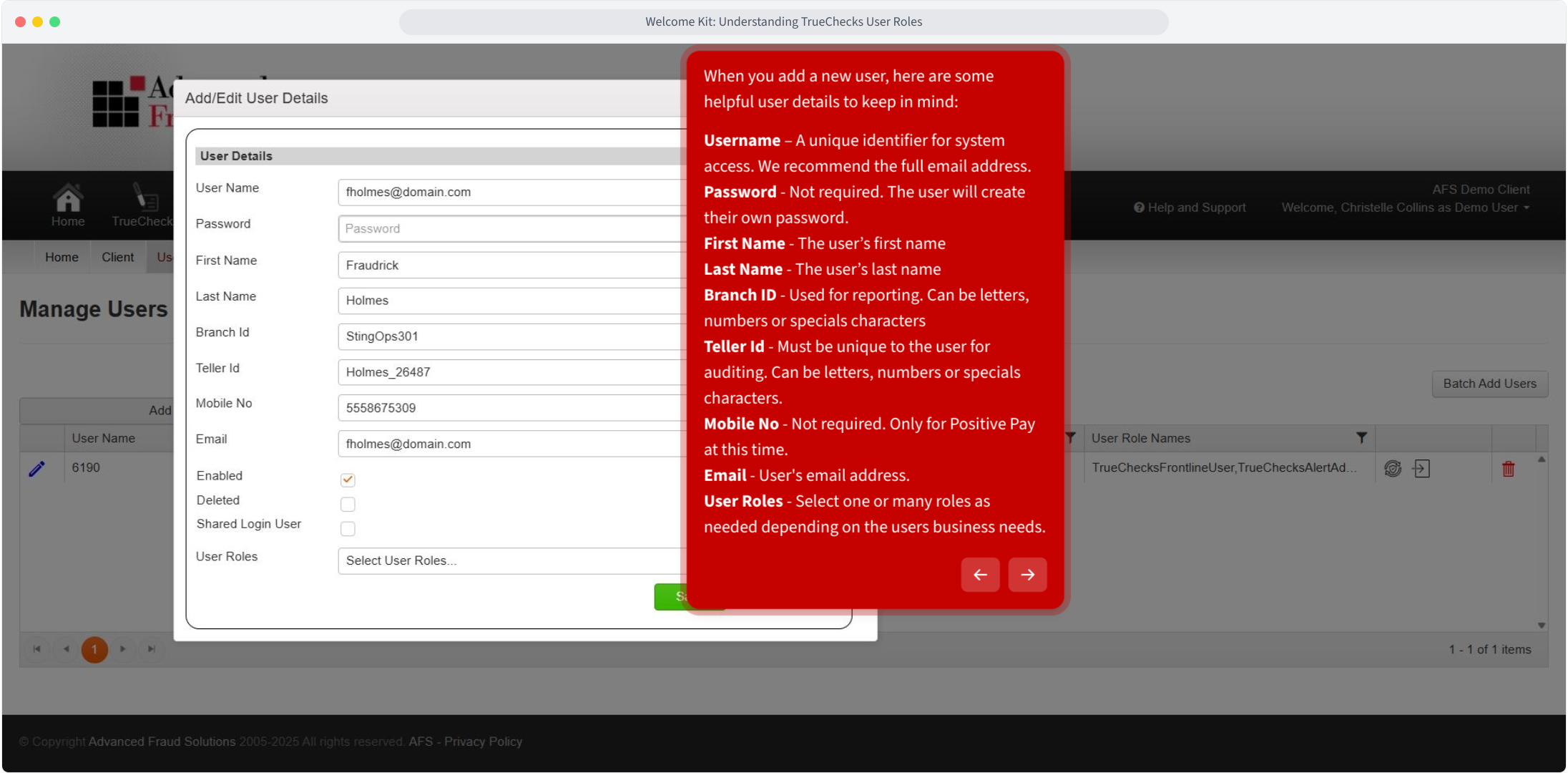
When you add a new user, here are some helpful user details to keep in mind:
- Username – A unique identifier for system access. We recommend the full email address.
- Password - Not required. The user will create their own password.
- First Name - The user’s first name
- Last Name - The user’s last name
- Branch ID - Used for reporting. Can be letters, numbers or specials characters
- Teller Id - Must be unique to the user for auditing. Can be letters, numbers or specials characters.
- Mobile No - Not required. Only for Positive Pay at this time.
- Email - User's email address.
- User Roles - Select one or many roles as needed depending on the users business needs.
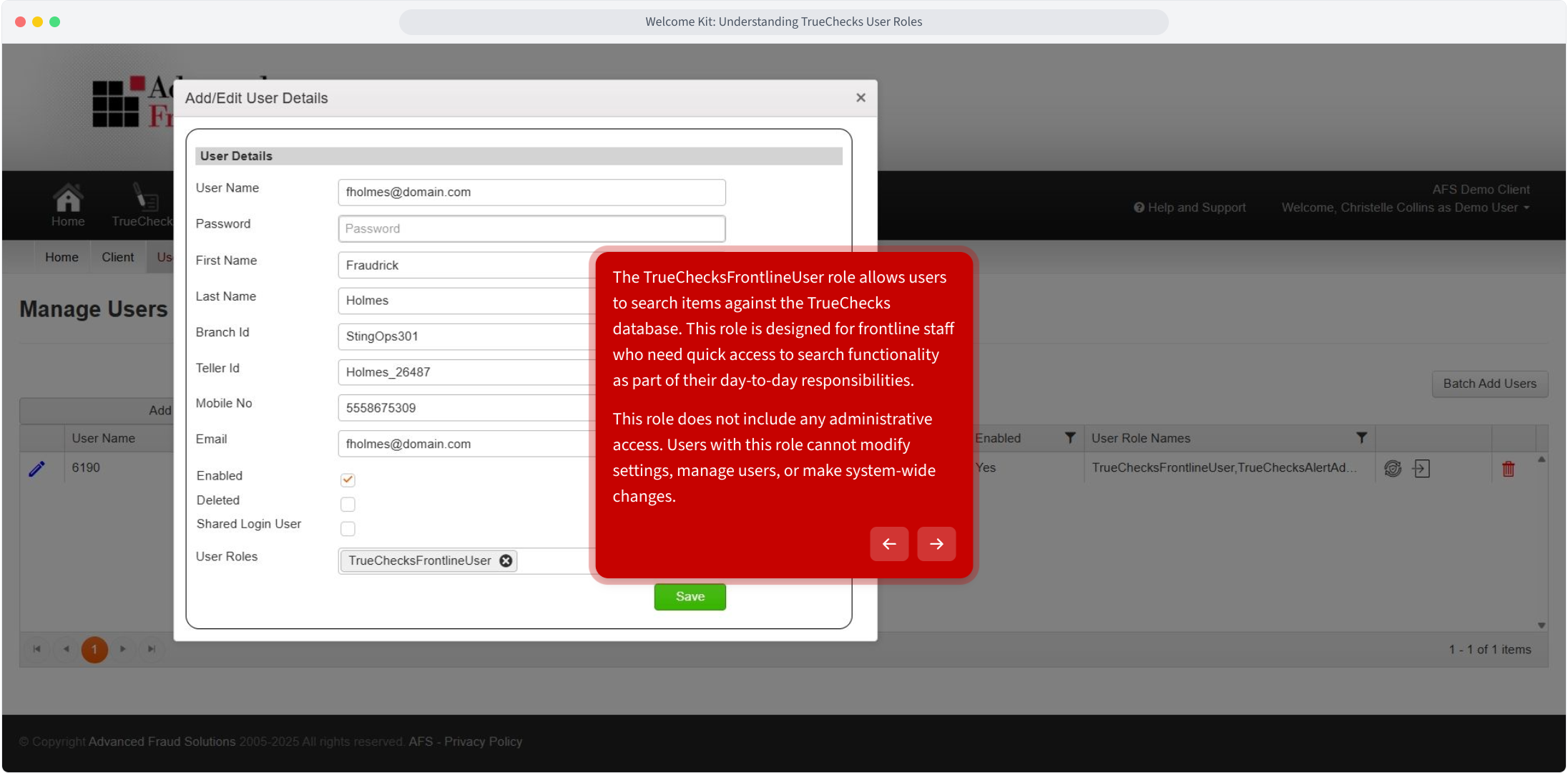
The TrueChecksFrontlineUser role allows users to search items against the TrueChecks database. This role is designed for frontline staff who need quick access to search functionality as part of their day-to-day responsibilities.
This role does not include any administrative access. Users with this role cannot modify settings, manage users, or make system-wide changes.
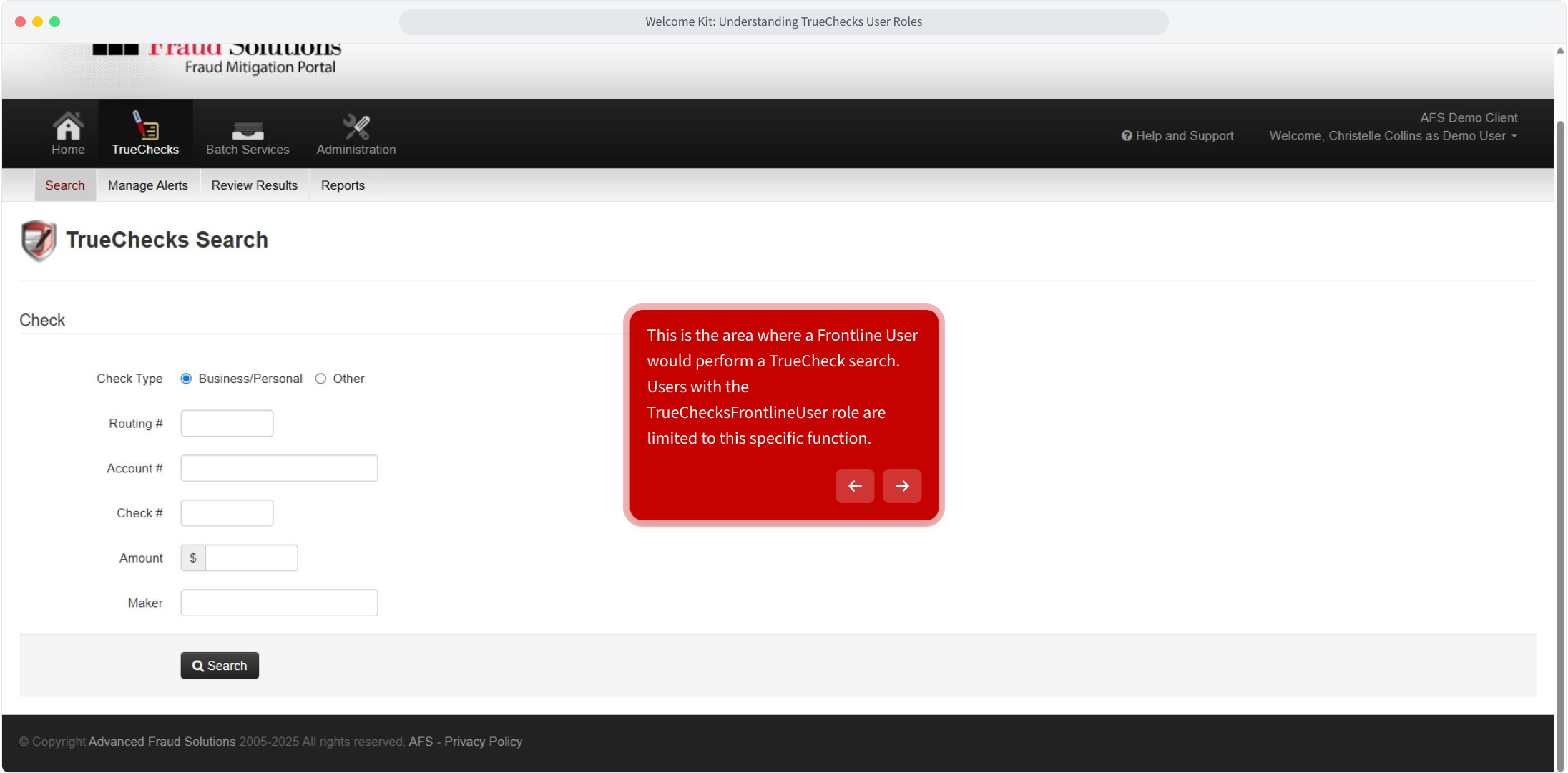
This is the area where a Frontline User would perform a TrueChecks search.
Users with the TrueChecksFrontlineUser role are limited to this specific function.
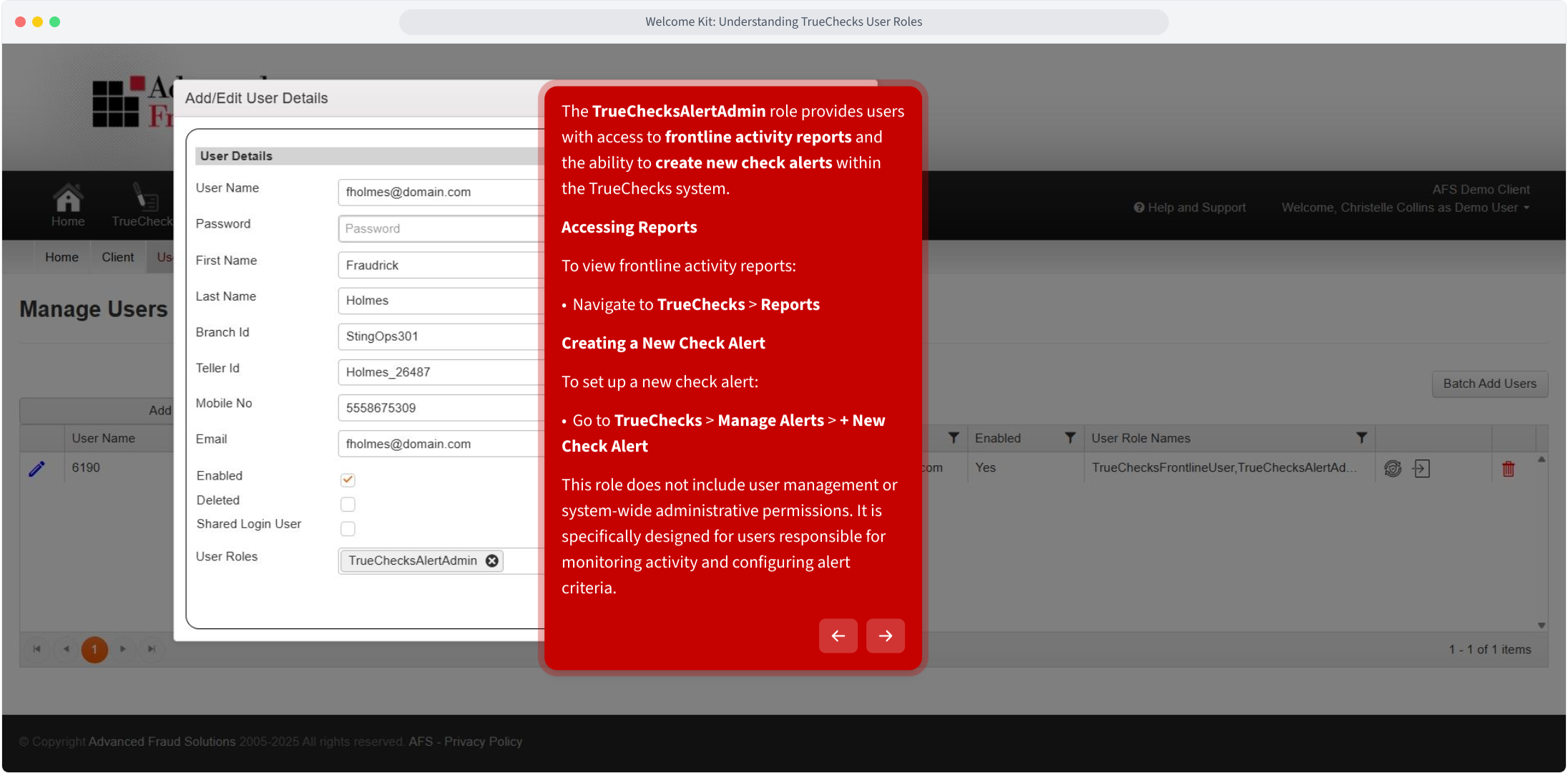
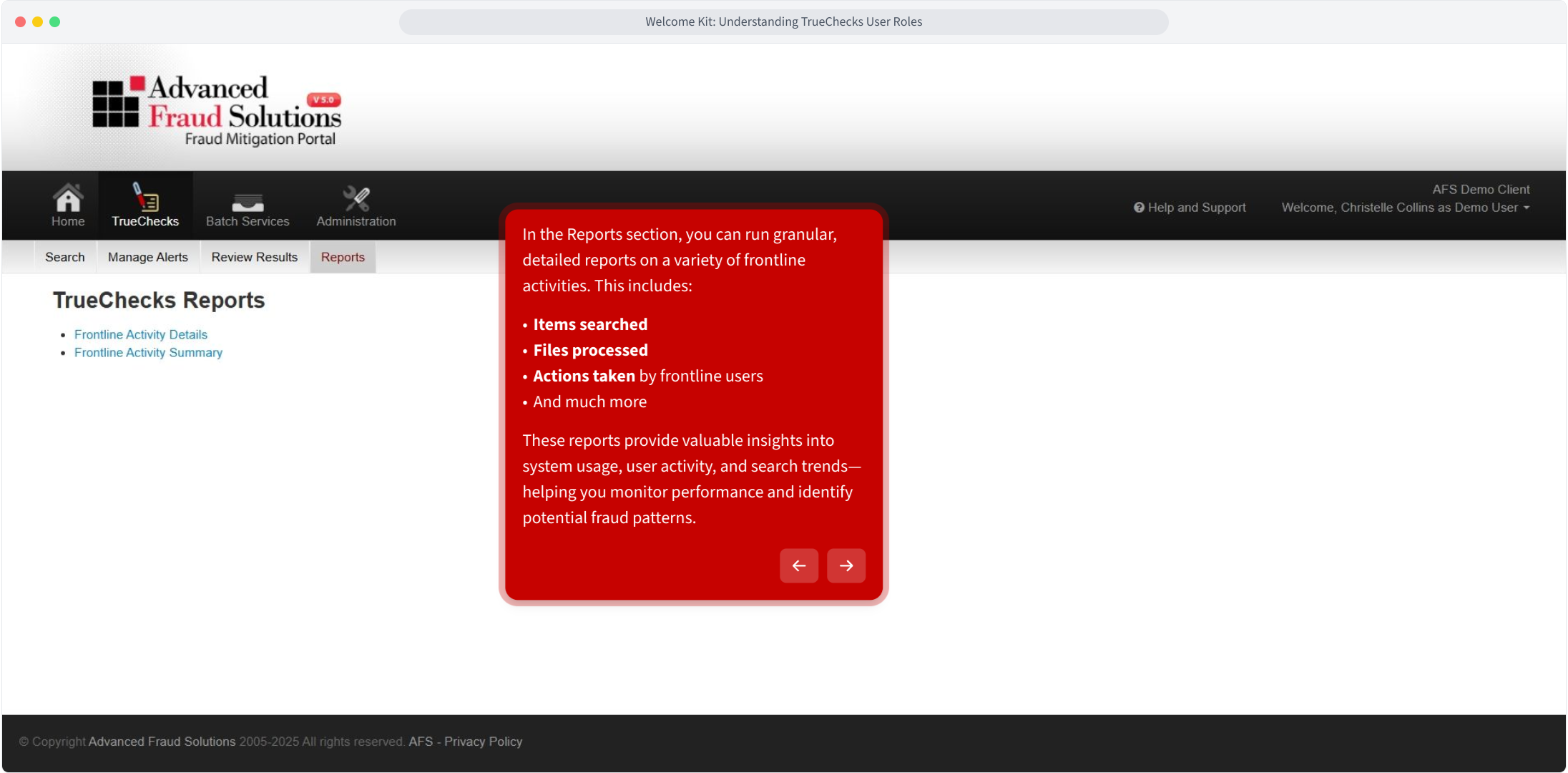
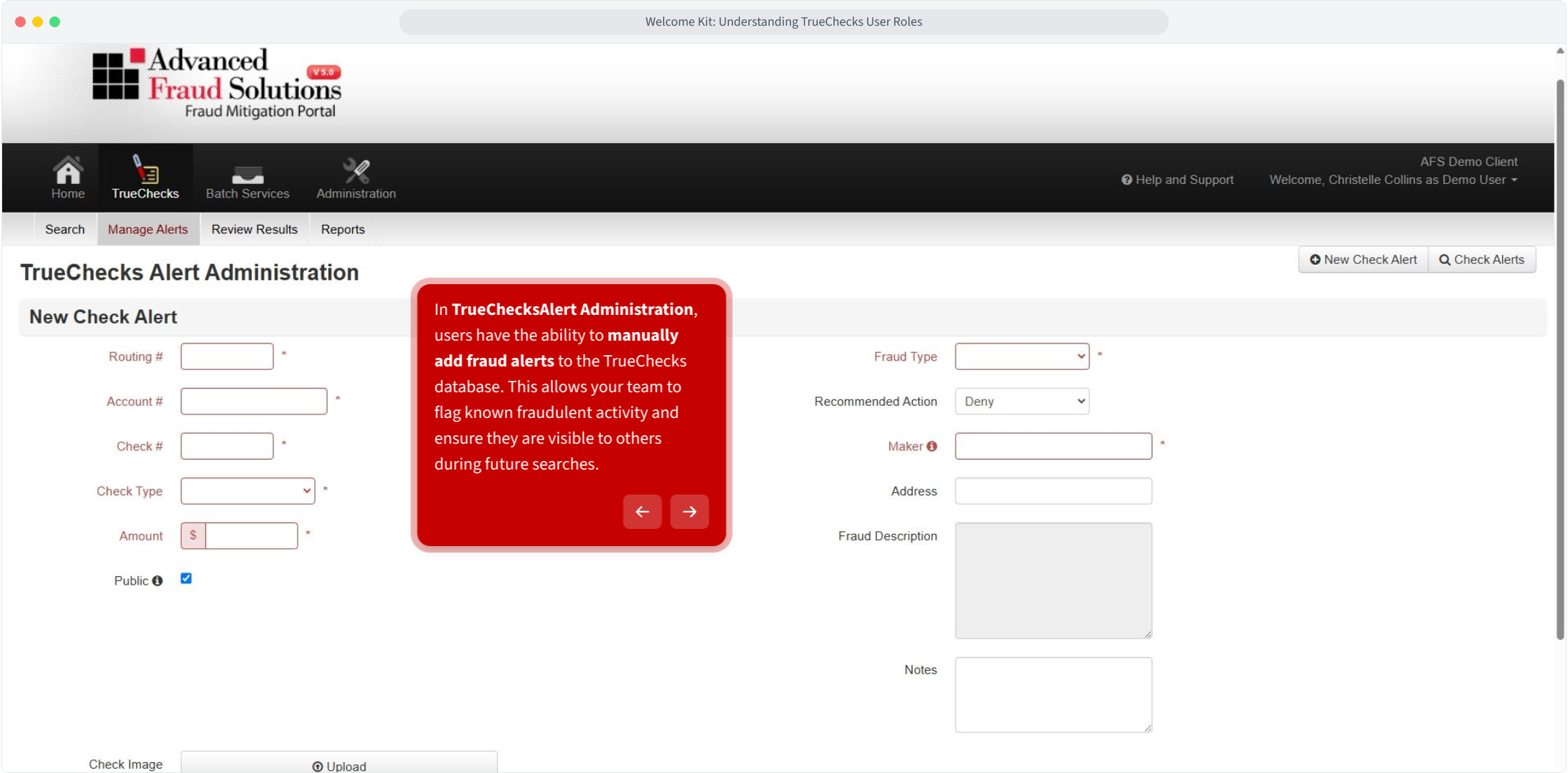
The TrueChecksAlertAdmin* role provides users with access to frontline activity reports and the ability to create new check alerts within the TrueChecks system.
- Accessing Reports: To view frontline activity reports: Navigate to TrueChecks > Reports
- Creating a New Check Alert: To set up a new check alert: Go to TrueChecks > Manage Alerts > + New Check Alert
*This role does not include user management or system-wide administrative permissions. It is specifically designed for users responsible for monitoring activity and configuring alert criteria.
In the Reports section, you can run granular, detailed reports on a variety of frontline activities. This includes:
- Items searched
- Files processed
- Actions taken by frontline users
- And more
These reports provide valuable insights into system usage, user activity, and search trends—helping you monitor performance and identify potential fraud patterns.
In TrueChecksAlert Administration, users have the ability to manually add fraud alerts to the TrueChecks database. This allows your team to flag known fraudulent activity and ensure they are visible to others during future searches.
ClientAdmin Role Overview
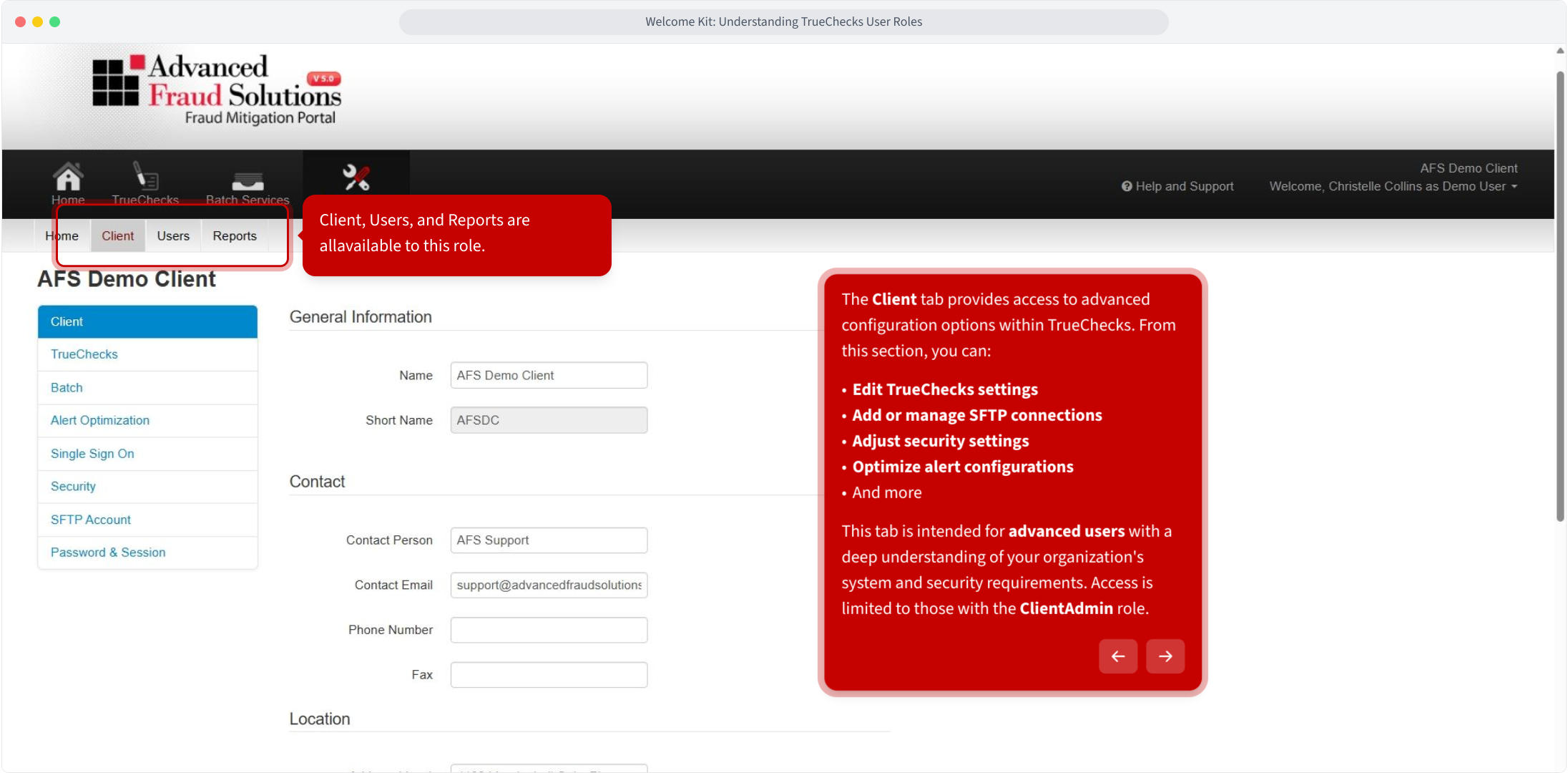
With the ClientAdmin* role, you can access three advanced areas of TrueChecks: Client, Users, and Reports.
⚠️ Important: This role is intended for advanced users who understand your FI’s system configuration and security requirements. If you’re not sure whether this applies to you, contact your administrator before making changes.
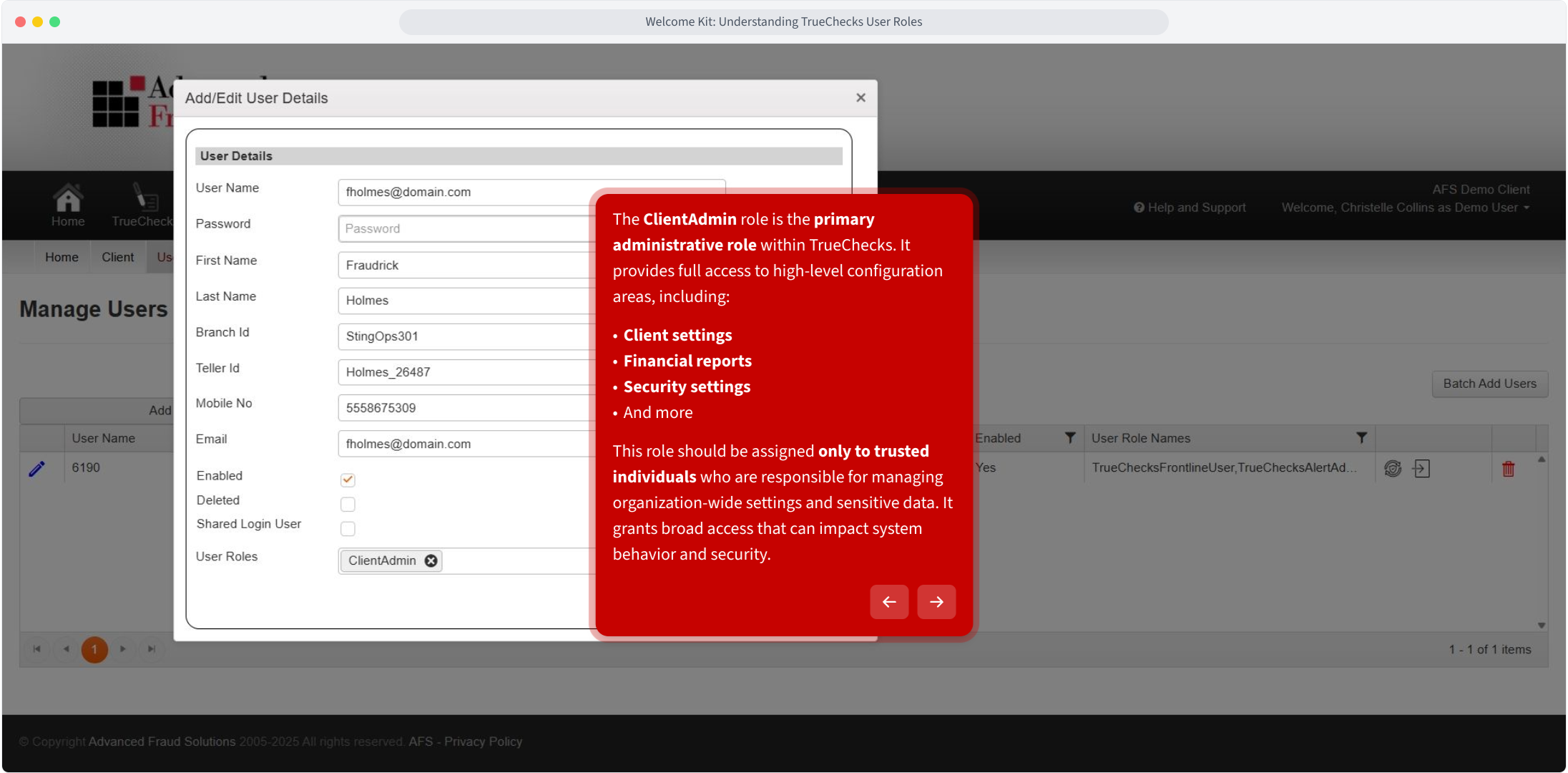
The ClientAdmin role is the primary administrative role within TrueChecks. It provides full access to high-level configuration areas, including:
- Client settings
- Financial reports
- Security settings
- And more
*This role should be assigned only to trusted individuals who are responsible for managing organization-wide settings and sensitive data. It grants broad access that can impact system behavior and security.
With ClientAdmin, you’ll see three additional tabs: Client, Users, Reports. Each gives access to advanced system configuration.
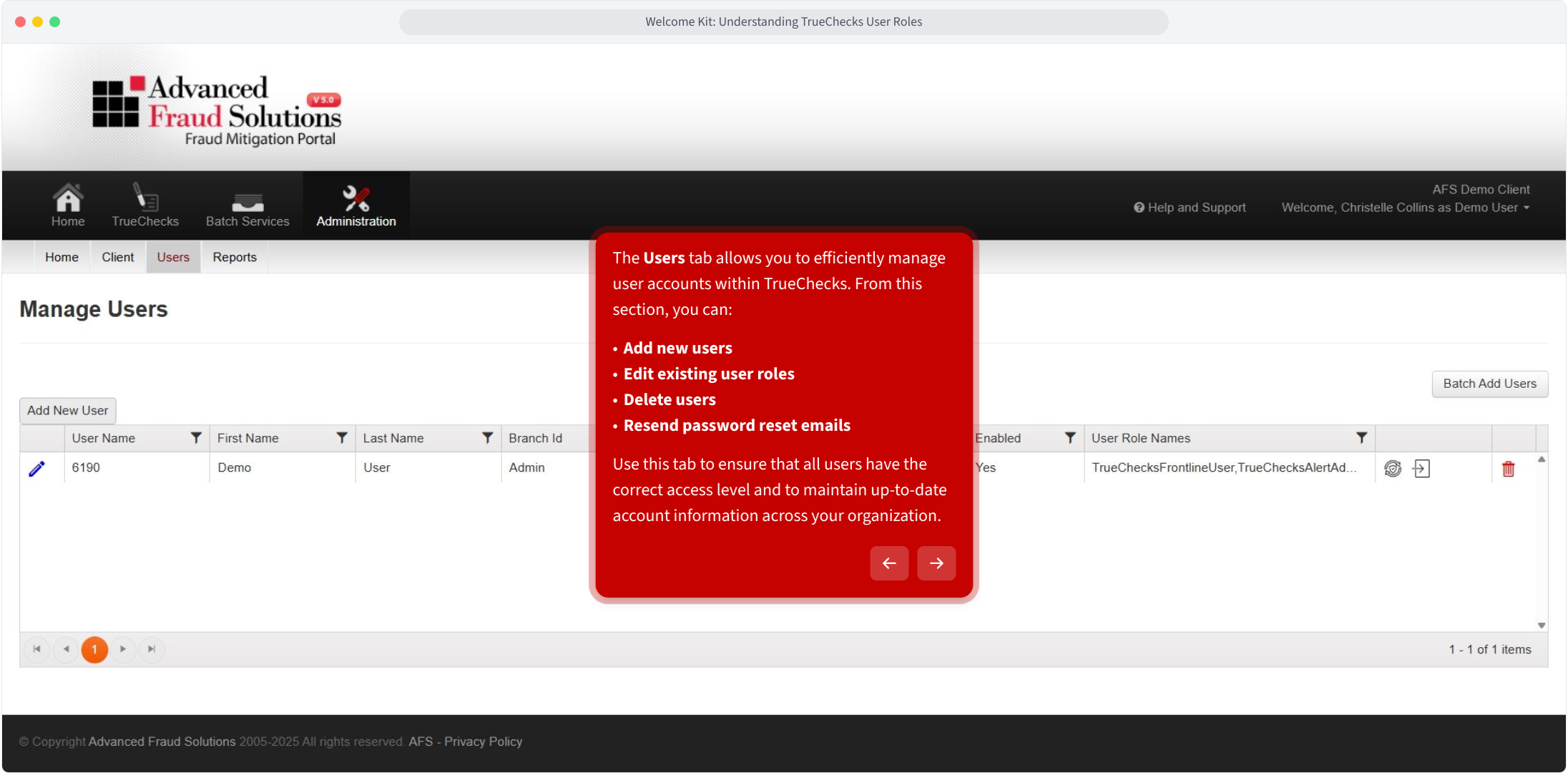
The Users tab allows you to efficiently manage user accounts within TrueChecks. From this section, you can:
- Add new users
- Edit existing user roles
- Delete users
- Resend password reset emails
Use this tab to ensure that all users have the correct access level and to maintain up-to-date account information across your organization.
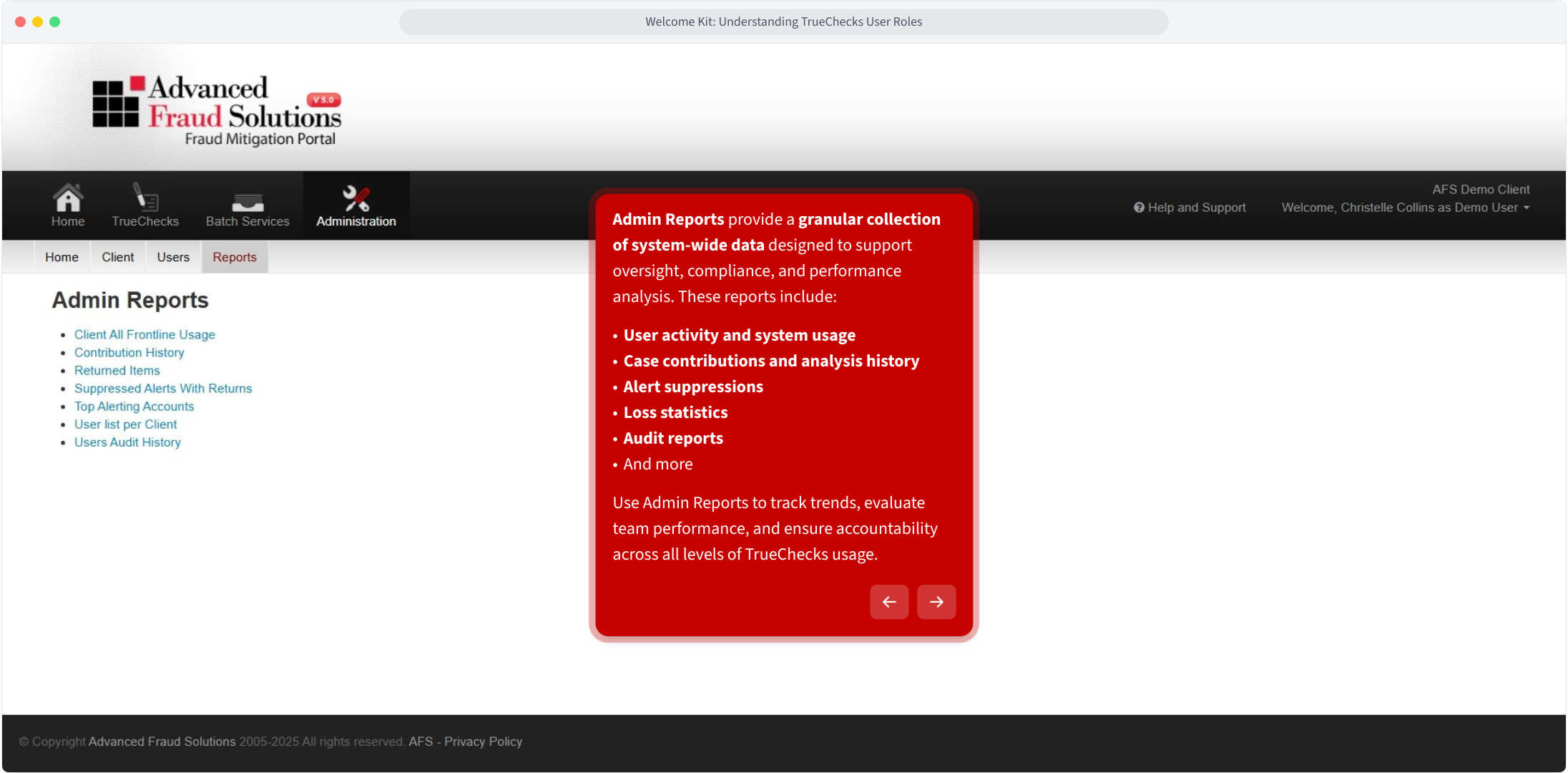
Admin Reports* provide a granular collection of system-wide data designed to support oversight, compliance, and performance analysis. These reports include:
- User activity and system usage
- Case contributions and analysis history
- Alert suppressions
- Loss statistics
- Audit reports
- And more
*Use Admin Reports to track trends, evaluate team performance, and ensure accountability across all levels of TrueChecks usage.
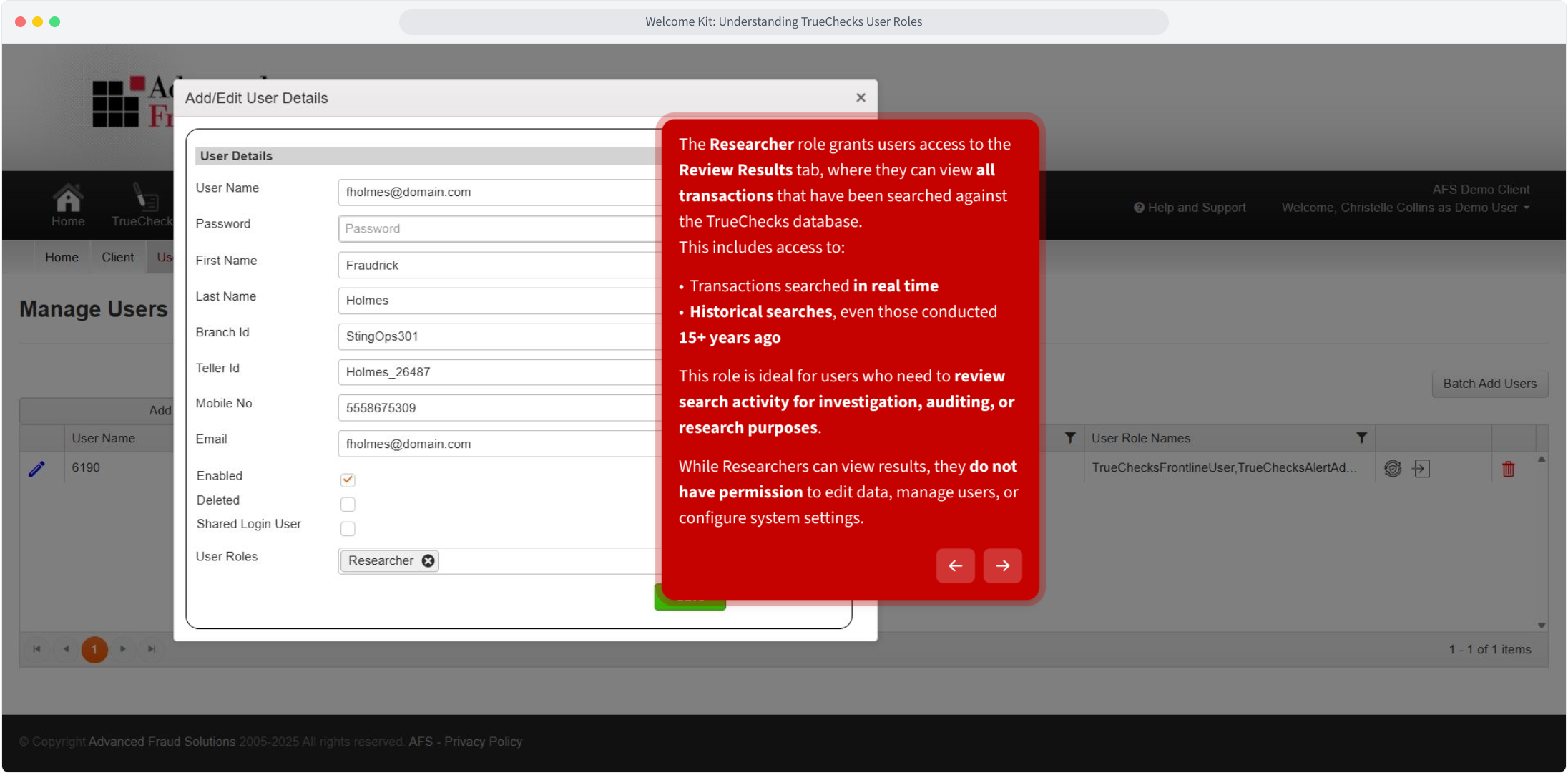
The Researcher* role grants users access to the Review Results tab, where they can view all transactions that have been searched against the TrueChecks database.
This includes access to:
- Transactions searched in real time
- Historical searches, even those conducted 15+ years ago
*This role is ideal for users who need to review search activity for investigation, auditing, or research purposes. While Researchers can view results, they do not have permission to edit data, manage users, or configure system settings.
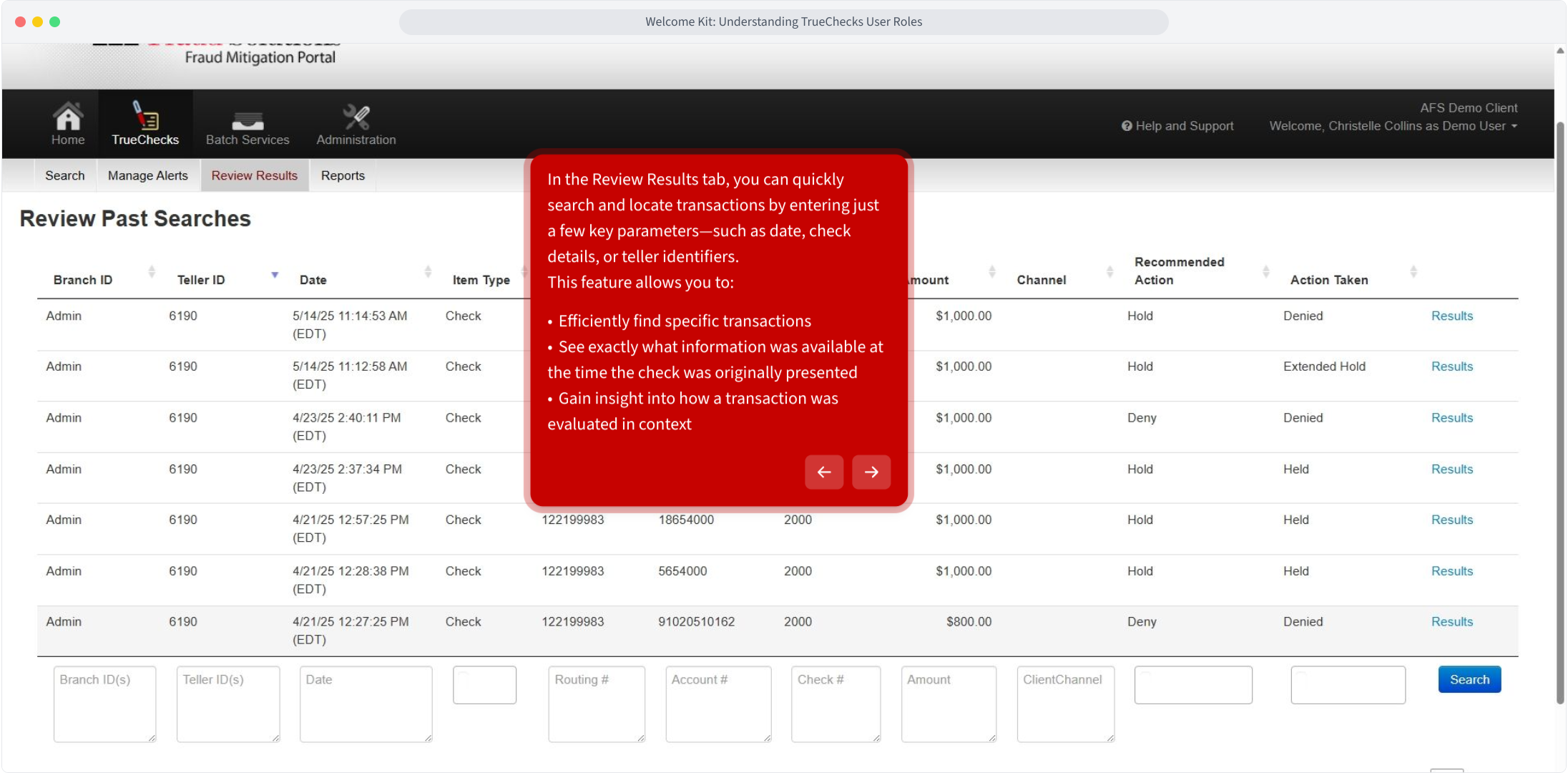
In the Review Results tab, you can quickly search and locate transactions by entering just a few key parameters—such as date, check details, or teller identifiers.
This feature allows you to:
- Efficiently find specific transactions
- See exactly what information was available at the time the check was originally presented
- Gain insight into how a transaction was evaluated in context
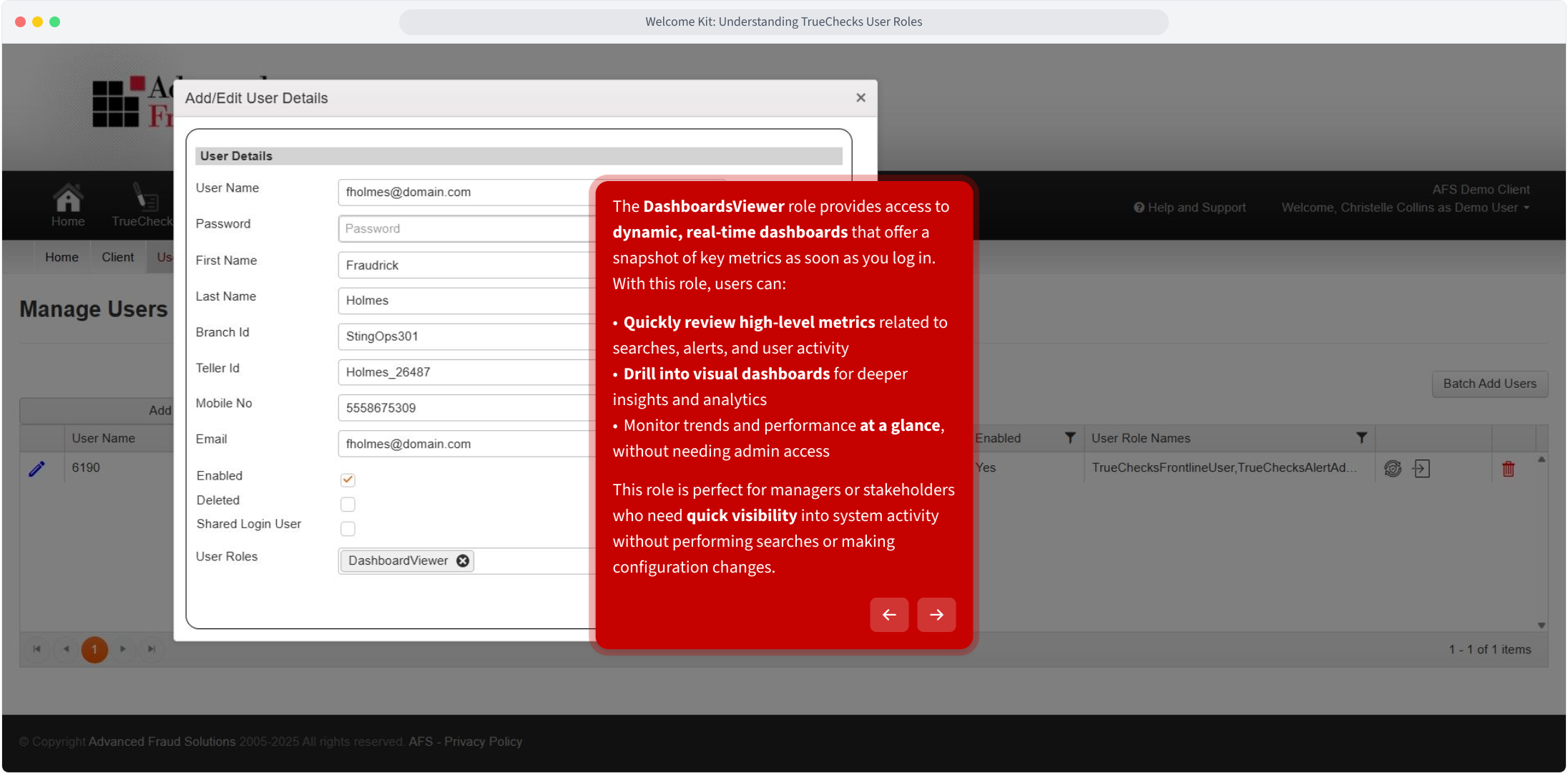
The DashboardsViewer* role provides access to dynamic, real-time dashboards that offer a snapshot of key metrics as soon as you log in.
With this role, users can:
- Quickly review high-level metrics related to searches, alerts, and user activity
- Drill into visual dashboards for deeper insights and analytics
- Monitor trends and performance at a glance, without needing admin access
*This role is perfect for managers or stakeholders who need quick visibility into system activity without performing searches or making configuration changes.
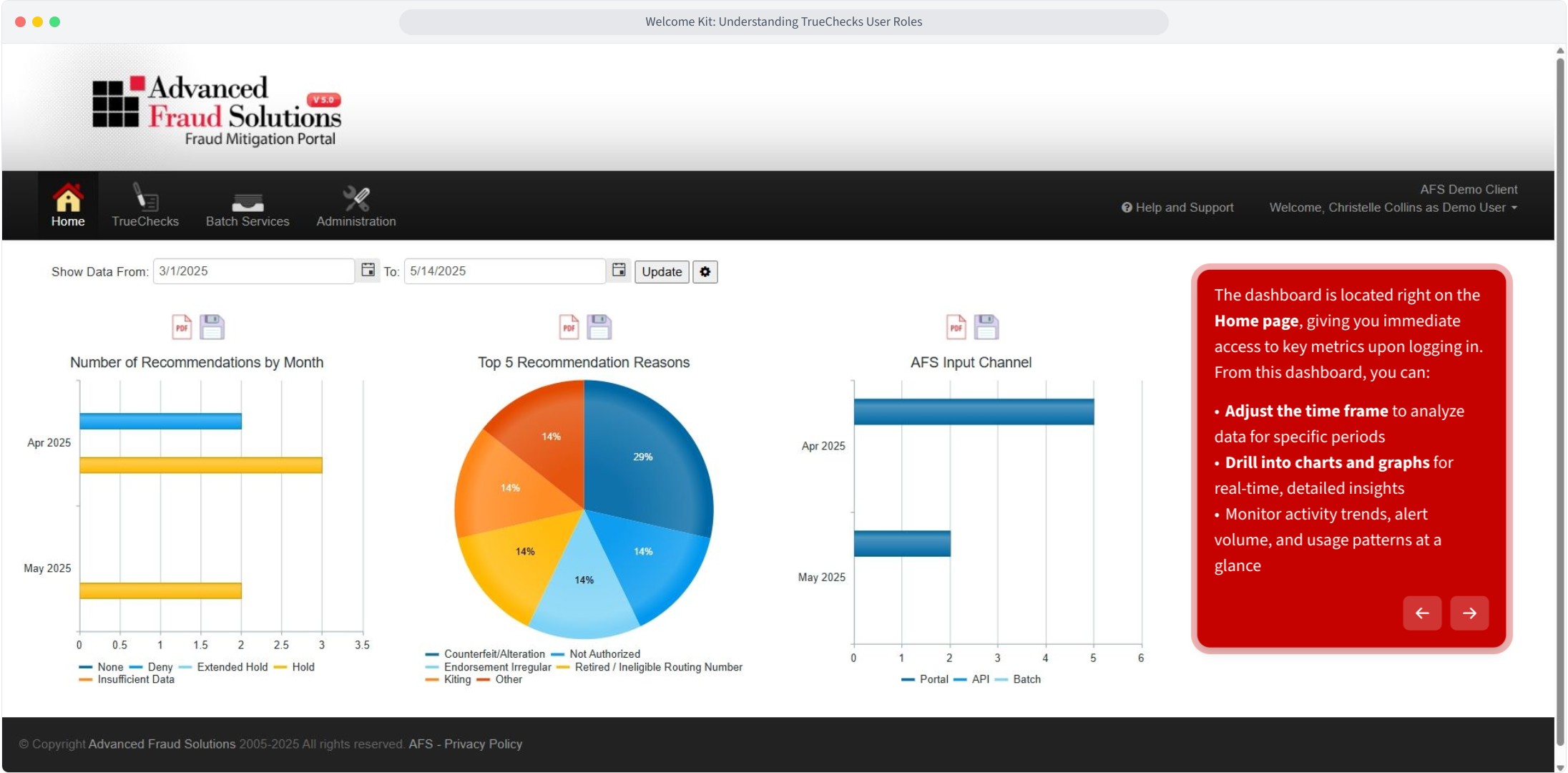
The dashboard is located right on the Home page, giving you immediate access to key metrics upon logging in.
From this dashboard, you can:
- Adjust the time frame to analyze data for specific periods
- Drill into charts and graphs for real-time, detailed insights
- Monitor activity trends, alert volume, and usage patterns at a glance
Comments
0 comments
Please sign in to leave a comment.