Your TrueChecks administrator may choose to setup an optional TrueChecks search feature called Depositor search. With Depositor search enabled, the following additional search fields may be available on the TrueChecks search page:
- First Name
- Last Name
- Social Security Number
- Drivers License Number
- Financial Institution ID (FI ID)
Depending on the settings defined by your administrator, these fields may be optional, disabled, or even required.
Setting up Depositor Search
Depositor search is easy to setup, and requires a few steps from a TrueChecks administrator.
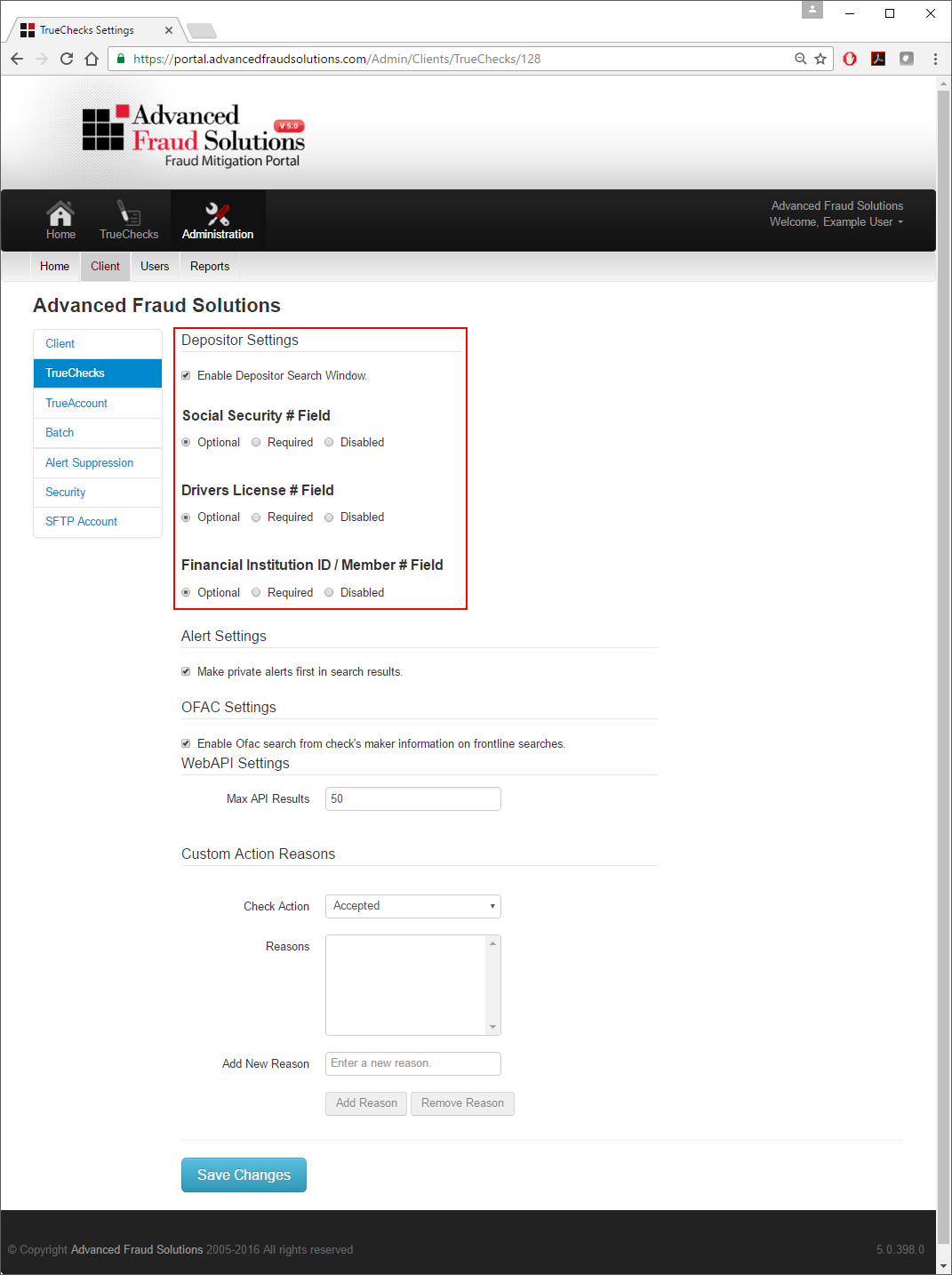
First, navigate to Administration > Client > TrueChecks and check Enable Depositor Search Window. Then, determine the requirements (Optional, Required, Disabled) for each Depositor field.
Lastly, click Save Changes at the bottom of the screen.
Creating Depositor Alerts
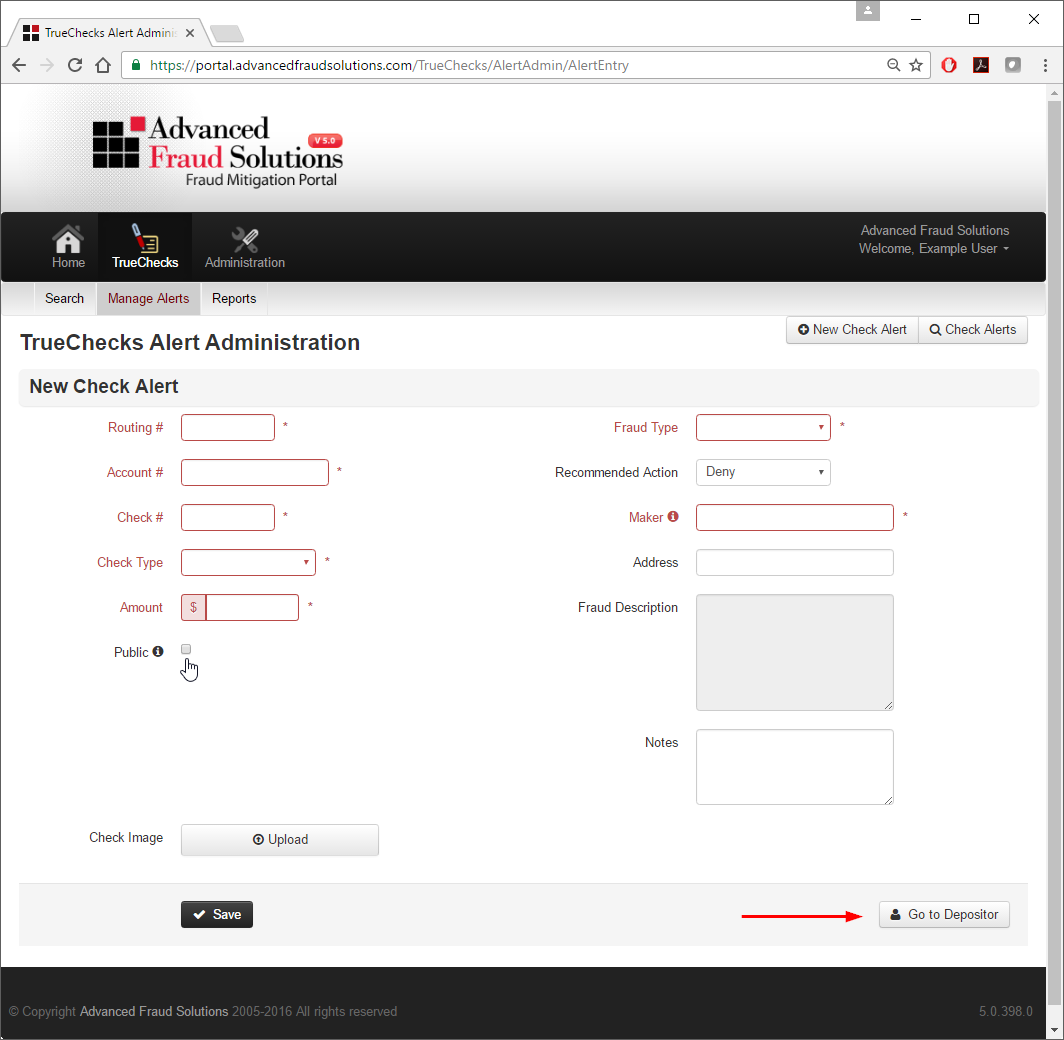
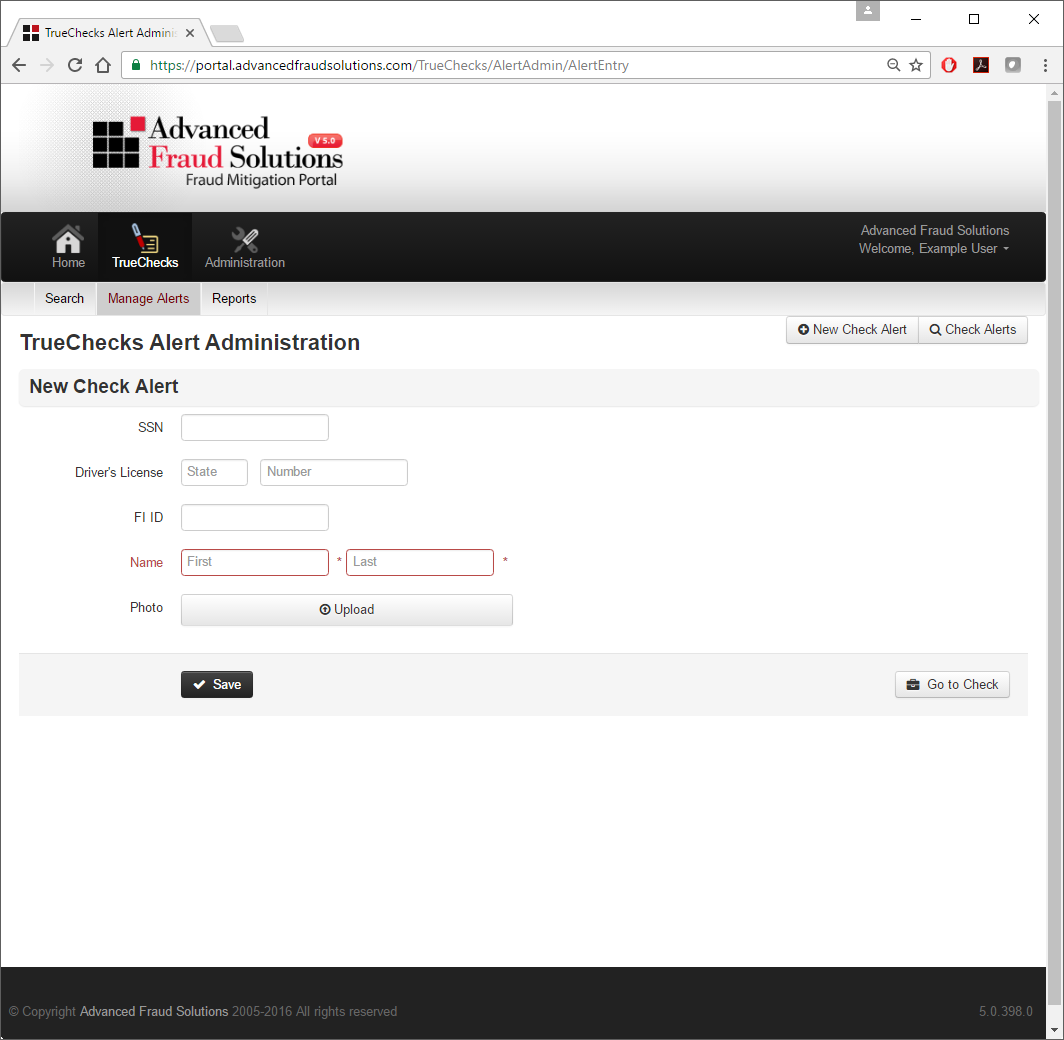
Depositor alerts must be attached to private TrueChecks alerts, and will only be available to your organization. To create a Depositor alert, select TrueChecks > Manage Alerts > New Check Alert and enter the check information. Since Depositor alerts must be attached to private check alerts, be sure to un-check the Public flag when creating new Depositor alerts. Once unchecked, you'll notice the Go To Depositor button on the lower right side of the screen. This button will take you to the Depositor section of the alert where you can attach the member/customer information to the alert.
Depositor Alerts
It's important to note that Depositor alerts are a type of TrueChecks alert that is based on a person's activity. You can use Depositor alerts to track a member or customer's activity in TrueChecks. Whenever a member presents a bad check, a TrueChecks administrator can create a TrueChecks check alert on the check, and also create a Depositor alert on the member/customer who presented it. Once both TrueChecks and Depositor alerts have been created, your organization will be alerted anytime a match is found on the check, or when a match is found on the member/customer presenting the check.
Depositor alerts must be attached to a private TrueChecks alert, and will only be available to your organization. Think of it as a way to attach additional member/customer information when reporting a bad check into TrueChecks.
Depositor Examples
While Depositor alerts must be tied to TrueChecks alerts, they will return anytime a match is found, with or without a TrueChecks check alert.
Let's use "John Doe" as an example member, and let's say that John Doe presents a bad check at the teller line. A TrueChecks administrator creates a new TrueChecks alert on the check and also creates a Depositor alert on John Doe. This alert is only available to your organization and is available immediately.
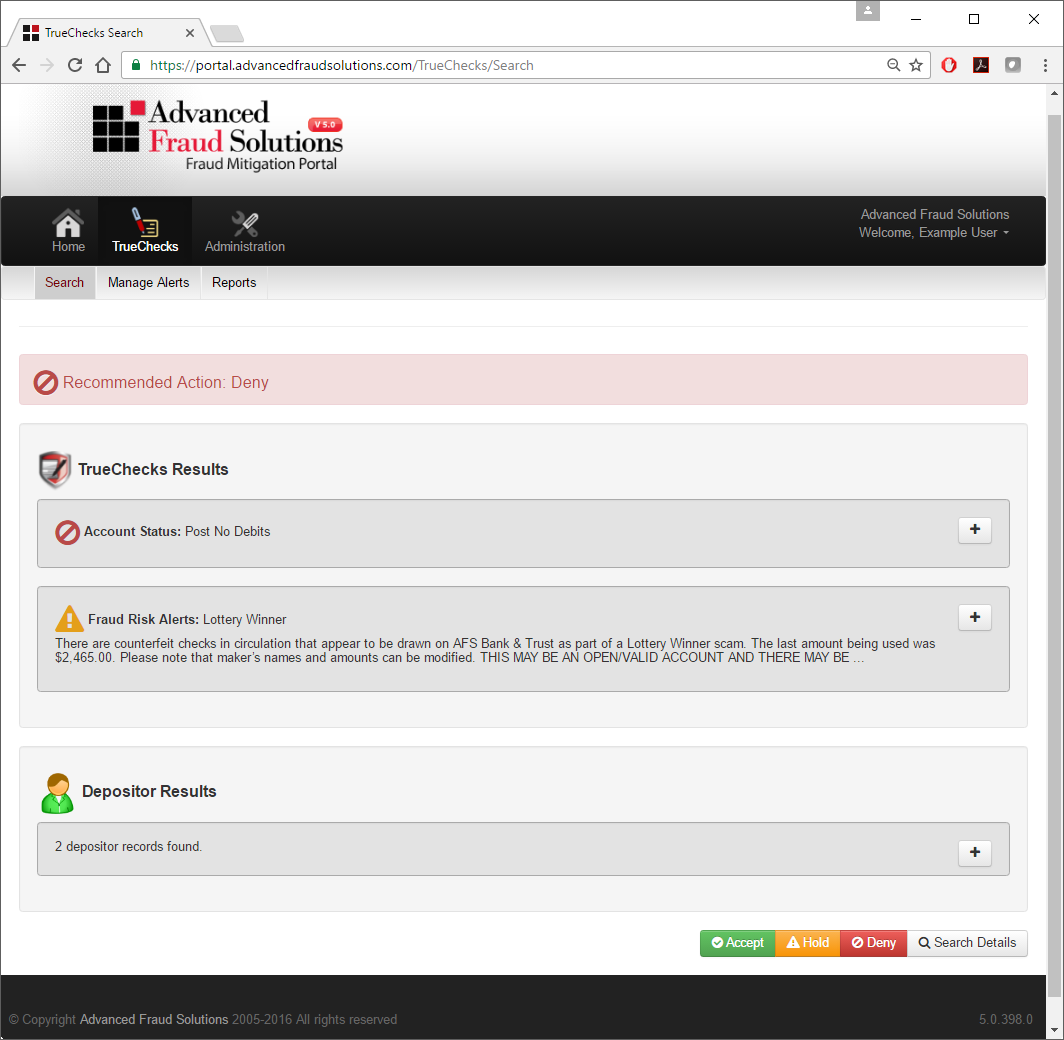
The TrueChecks check alert will return anytime matching check information is searched in TrueChecks. The Depositor alert will return anytime matching Depositor information is searched in TrueChecks.
This is important because Mr. Doe may present a good check on his next visit to your organization. This good check will not have a TrueChecks check alert, but the Depositor alert will match, and alert you that John Doe has presented bad checks recently.
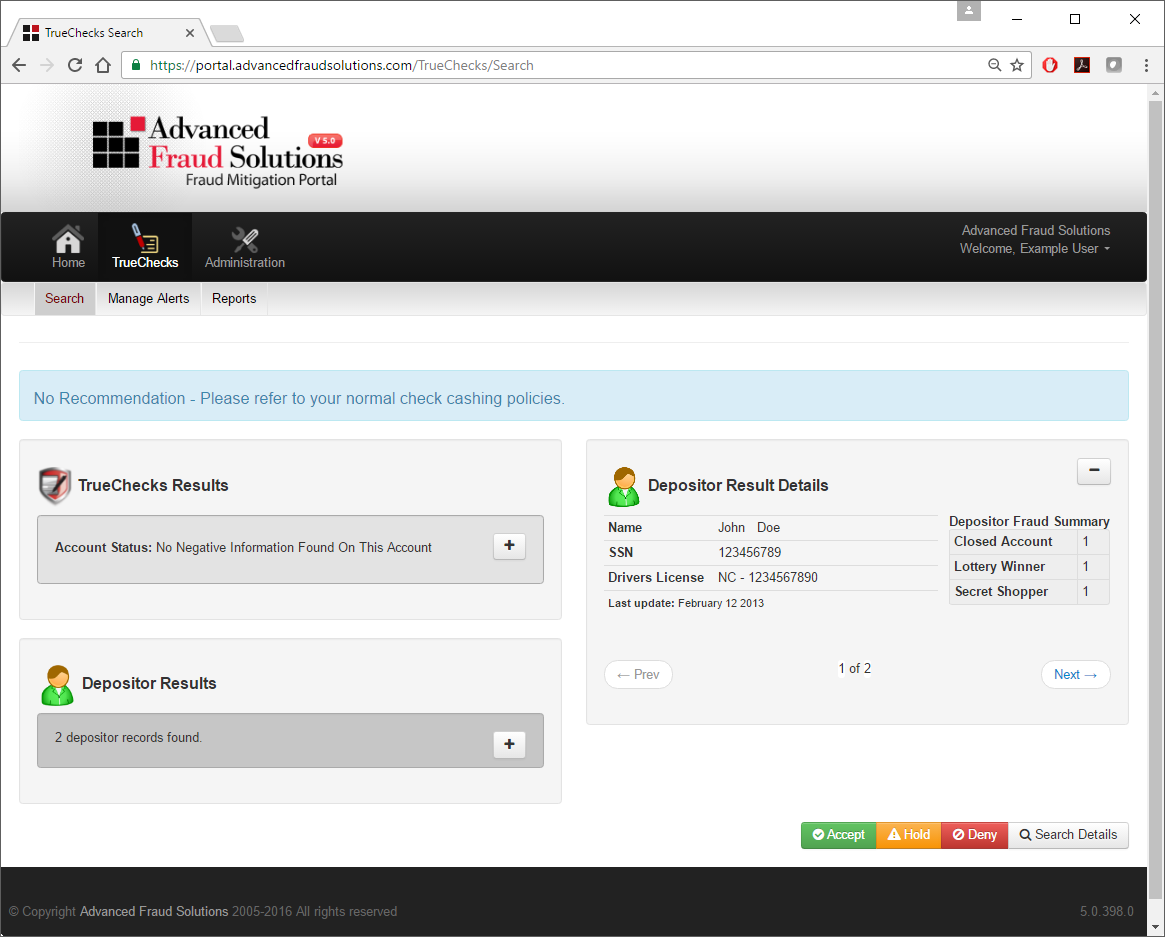
On the other hand, if Mr. Doe presents another bad check, then you will see both the TrueChecks check alert and the Depositor alert when TrueChecks is searched.
Comments
0 comments
Please sign in to leave a comment.