There is an optional portal-only feature in TrueChecks that allows TrueChecks users to select a reason and enter a comment when taking action on items that they have searched. This feature can easily be set up by a TrueChecks administrator and offers TrueChecks users the opportunity to leave a note in the TrueChecks reports that provides additional details surrounding why they chose a particular action.
To set up this feature, TrueChecks administrators will need to select Administration > Client > TrueChecks in the TrueChecks portal.
Reasons are defined by a TrueChecks administrator, and cannot be changed by TrueChecks users. These reasons are independently based on check actions like Accepted, Held, or Denied.
In the following example, we're going to be setting up a few reasons for the check action of Held.
The first thing we'll need to do is select the check action of Held from the Check Action drop-down list.
Next, we'll enter the reasons that we'd like our team to select from, and click Add Reason.
** Please note that reasons are not required for all check actions.
Lastly, we'll click Save Changes.
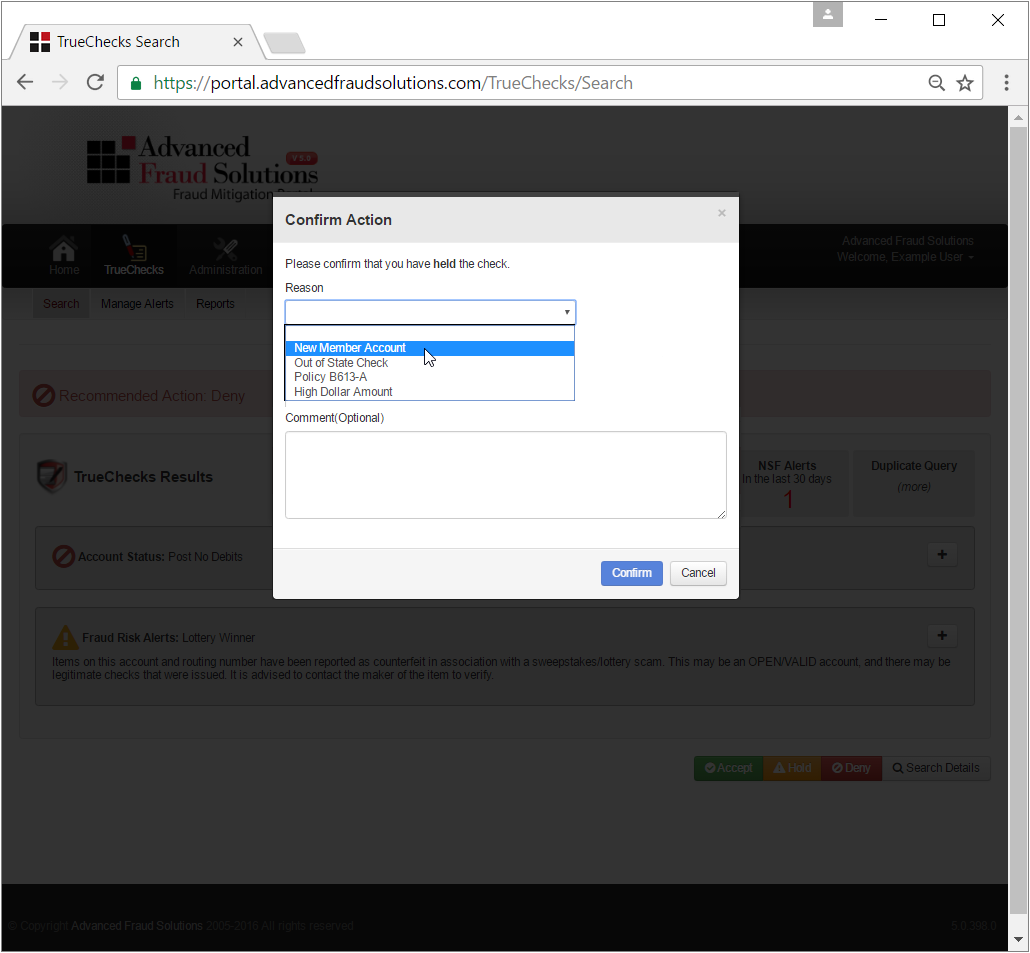
With Reasons and Comments enabled, TrueChecks users will be prompted to select a reason and enter an optional comment whenever an action containing reasons is chosen after a TrueChecks search. In this example, whenever the action of "Hold" is selected, the TrueChecks user is prompted to select from the reasons we defined earlier in this article.
Comments
0 comments
Please sign in to leave a comment.